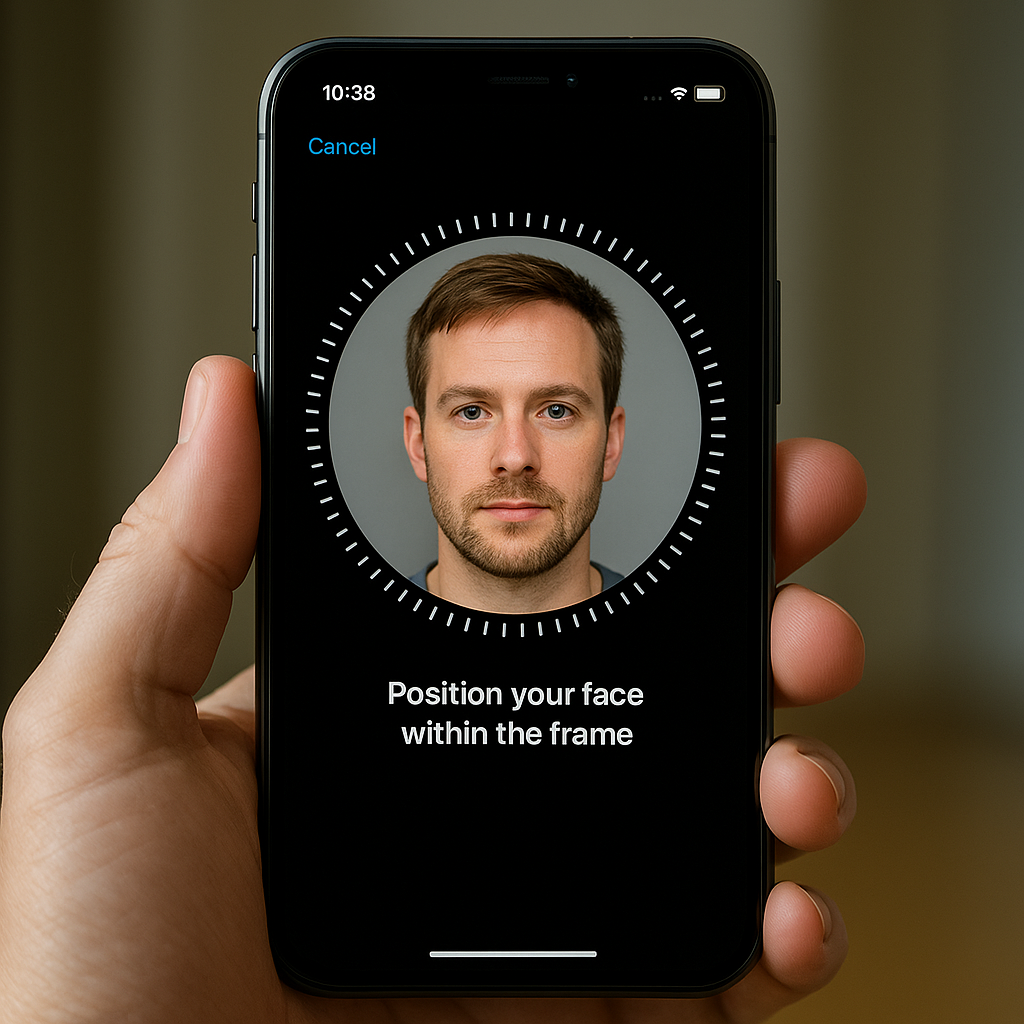
A Face ID-compatible iPhone can recognize a second face through Alternate Appearance. Go to Settings → Face ID & Passcode → enter your passcode → Set Up an Alternate Appearance. The feature is primarily intended to help Face ID recognize a different appearance of the same person. Enrolling someone else can also give that person access to the phone and actions protected by Face ID, depending on your settings.
Before starting, have the device passcode ready and decide whether the other person should have that level of access.
Can You Add Two Faces to Face ID on an iPhone?
Yes. Face ID supports an initial enrollment plus one alternate appearance. That allows a second face to be enrolled, but it does not create a separate identity with its own access rules.
| Face ID option | What it means |
|---|---|
| Initial enrollment | The face registered during the first Face ID setup. |
| Alternate Appearance | One additional enrollment, not a separate account or guest profile. |
This requires an iPhone with Face ID and a TrueDepth camera. An iPhone that uses Touch ID instead cannot add facial recognition through this setting.
Apple’s guide to setting up an alternate appearance explains where the option sits within Face ID & Passcode.
How to Add Another Face on iPhone: Step by Step
If Face ID already recognizes the owner’s face, follow these steps to add the alternate enrollment.
1. Open Settings on the iPhone.
2. Tap Face ID & Passcode.
3. Enter the iPhone’s device passcode when prompted.
4. Tap Set Up an Alternate Appearance.
5. Position the face inside the frame. Follow the on-screen instructions, moving the head as directed until the required scans are complete.
6. Finish the setup, then lock the iPhone and test whether Face ID recognizes the newly enrolled face. After successful authentication, swipe up to open the phone.
Keep the TrueDepth camera unobstructed. Remove anything covering the camera area, and let the person being enrolled follow the positioning guidance displayed on the phone. Exact screens can vary with the iOS version.
If the iPhone asks for its passcode during testing, enter it before trying again. A passcode request does not necessarily mean enrollment failed; Face ID still requires the passcode in certain situations.
What If “Set Up an Alternate Appearance” Is Missing?
Check these points before changing other settings:
- Confirm Face ID compatibility. The option is not available on iPhones that use Touch ID.
- Complete the initial setup first. If no face is enrolled, use Set Up Face ID before looking for the alternate appearance option.
- Check whether the alternate slot is already used. Face ID supports only one alternate appearance, so the option will not remain available for adding more.
- Reset and enroll again if the alternate appearance needs replacing. This removes all existing Face ID enrollment, not just the additional face.
There is no list of named people in these settings. If an alternate appearance was added earlier, the phone does not present it as a separate profile that can simply be selected and edited.
How to Replace or Remove the Second Face
Open Settings → Face ID & Passcode, enter the passcode, and tap Reset Face ID. Then select Set Up Face ID and complete enrollment again with the owner’s face. Add an alternate appearance afterward only if it is still wanted.
Reset Face ID removes the existing Face ID enrollment, including the original face and the alternate appearance. It does not erase the iPhone or reset all device settings.
Apple’s Face ID setup and reset instructions describe this reset-and-reenroll approach. Keep the passcode available, since it is needed to access the settings and remains the fallback authentication method.
Before You Add Another Person: Understand the Access You Are Granting
An alternate face is not a restricted guest identity. Face ID does not let the owner assign one enrolled face permission to unlock the iPhone while blocking that same face from other Face ID uses.
Apple explains that Face ID can authenticate purchases and other actions. Depending on enabled settings and app behavior, another enrolled person may be able to unlock the iPhone, approve purchases, use password autofill, or open Face ID-enabled apps.
- Enroll only someone you fully trust with sensitive access.
- Review the Use Face ID For settings before adding another person.
- Consider access to purchases, saved credentials, and private app content.
- Do not treat the alternate appearance as having “unlock-only” permissions.
Authentication permissions vary by feature and app. Some actions still require the device passcode, an account password, or another check. Adding a face does not remove those requirements, but it should still be treated as granting meaningful access—not just a convenient way to share the screen.
FAQ
Can you add a third face to Face ID?
No. The supported arrangement is one initial Face ID enrollment plus one alternate appearance. There is no third enrollment slot.
Can you remove only the second face?
No. Face ID does not provide individual removal controls. Reset Face ID, then enroll again with only the face or appearances that should retain access.
Does adding another face create a separate iPhone account?
No. It does not create a separate user profile, app environment, or set of permissions. Both enrolled faces authenticate against the same iPhone’s Face ID settings.